
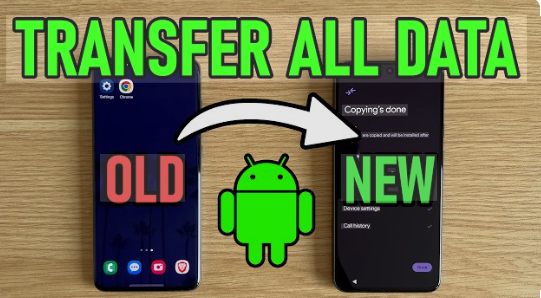
Set Up My Device From Old Phone:
When you buy a new smartphone, one of the first things you may think is, “How can I set up my device from my old phone?” Moving data from an old phone to a new one is easier than ever. Modern smartphones allow you to transfer contacts, photos, apps, and settings within minutes.
In this guide, you will learn simple and safe ways to set up your new device using your old phone.
What Does “Set Up My Device From Old Phone” Mean? Mean?
Setting up your device from an old phone means transferring your important data from your previous phone to your new one. This helps you keep your contacts, messages, photos, and apps without starting from scratch.
Many smartphones now include built-in tools that make the transfer process fast and simple.
For example, phones using Android or iOS offer easy setup options during the first startup of the device.
Things to Do Before Starting the Transfer
Before you start moving data from your old phone, it is helpful to prepare both devices.
Charge Both Phones.
Make sure both phones have enough battery. Data transfer can take some time, especially if you have many photos or apps.
Connect to Wi-Fi
A strong Wi-Fi connection will make the process faster and more stable.
Update Your Phone Software
If possible, update your old phone to the latest version. This can prevent errors during the transfer.
Back Up Your Data
It is always smart to create a backup before transferring files. This ensures you do not lose important information.
Method 1: Set Up Using Google Account (Android Phones)
If you are using an Android phone, the easiest method is using your Google account.
When you start your new phone, you will see the option to copy apps and data from an old device.
Steps to follow:
- Turn on your new phone.
- Connect to Wi-Fi.
- Sign in with your Google account.
- Choose the option to restore data from your previous device.
- Select the backup you want to restore.
This process can transfer the following:
- Contacts
- Apps
- Photos
- Messages
- Settings
Your phone will automatically download the data in the background.
Method 2: Transfer Data Using Cable
Another fast method is using a USB cable.
Many phones allow direct phone-to-phone transfer using a cable adapter.
Steps include:
- Connect your old phone to the new phone using a cable.
- Select transfer data when the option appears.
- Choose the files you want to move.
- Start the transfer.
This method is usually faster than wireless transfer.
Method 3: Use Apple Quick Start (iPhone)
If you are switching between iPhones, you can use the Quick Start feature.
This feature works on Apple iPhone devices and allows easy data transfer.
Steps:
- Turn on the new iPhone.
- Place the old iPhone near the new one.
- A setup screen will appear on the old phone.
- Scan the animation with your old device.
- Follow the instructions to complete the transfer.
This method can move:
- Apple ID settings
- Photos
- Apps
- Messages
- Contacts
The process is secure and automatic.
ALSO READ;https://weblibrarys.com/free-fortnite-accounts/
Method 4: Transfer Data Using Cloud Backup
Cloud backup is another popular option.
If your old phone was already backed up, restoring data becomes very simple.
Examples include:
- Google Drive backup for Android
- iCloud backup for iPhone
After signing into your account on the new device, your data will start downloading automatically.
This method is useful if you no longer have your old phone with you.
Common Problems During Device Setup
Sometimes users face small issues while setting up their device.
Here are a few common problems and solutions.
Slow Data Transfer
Large files like videos can slow down the process. Using a cable instead of Wi-Fi may help.
Apps Not Transferring
Some apps may not transfer automatically. You can download them again from the app store.
Login Issues
Make sure you remember your account password before starting the transfer process.
Tips for a Smooth Device Setup
Follow these tips to make the setup easier.
Keep both phones close together during wireless transfer.
Avoid interrupting the process once it starts.
Use official setup tools provided by the phone manufacturer.
Check your data afterward to confirm everything moved successfully.
Why Setting Up From an Old Phone Is Helpful
Transferring data from your old device saves time and effort.
Benefits include:
- No need to re-enter contacts
- Photos and memories stay safe
- Apps and settings are restored quickly.
- The new phone feels familiar immediately.
Instead of starting from zero, you continue where you left off.
Conclusion
Learning how to set up my device from my old phone is simple when you follow the right steps. Modern smartphones provide several easy methods, including Google account transfer, cable connection, Quick Start, and cloud backups.
By preparing your devices and using the built-in setup tools, you can move your important data safely and quickly.
This makes switching to a new phone smooth and stress-free.
FAQs
- How long does it take to set up a new phone from an old phone?
It usually takes between 10 minutes and 1 hour, depending on the amount of data being transferred.
- Can I transfer data without Wi-Fi?
Yes, you can use a USB cable or a device-to-device transfer feature.
- Will my apps transfer to my new phone?
Most apps will transfer automatically, but some may need to be downloaded again.
- Do I need my old phone during setup?
It is helpful to have your old phone, but you can also restore data using a cloud backup.
- Is transferring data between phones safe?
Yes, using official setup tools from your phone system like Android or iOS is safe and secure.